
How to Use Retool
Retool is an application that we use on the Support Team to access and update information on customer accounts.
This guide specifically will cover the Account Management dashboard, as well as the Account and Transcript Explorer dashboard.
Account Management
How to Search for a Customer
1. Use the “Enter search value” textbox in the top-right of the screen to search for an account email.
2. If a customer isn’t found, you’ll notice that it returns “No rows found”.
If a customer(s) is found, you’ll be able to view their account information here. Here’s a breakdown of what each column means:
-
id: This is a unique ID for each customer in our database.
-
email: The email address associated with the account.
-
requires_deposit: A boolean value representing whether or not the customer needs to deposit funds ahead-of-time or if they’re on End-of-Month (EOM) billing.
-
current_deposit_amount: The current customer balance amount from our DB.
-
is_disabled: If the account has been disabled. This will prevent them from using the API as well as from logging into the Dashboard.
-
customer_type: If empty, the customer is a PAYG customer. If “free”, then the customer is on the Free Tier.
-
throttle_limit: The customer’s concurrency limit, i.e. how many files they can process in parallel asynchronously.
-
throttle_limit_realtime: The customer’s Streaming concurrency limit, i.e. how many Streaming streams they can have open at once.
-
default_ttl_hours: The customer’s account level Time to Live value, i.e. The time after which all transcripts created via the async endpoint will be automatically deleted.
-
_stripe_customer_id: The Stripe ID generated by Stripe for this customer, if applicable.
-
metronome_id: The customer’s ID generated by Metronome.
-
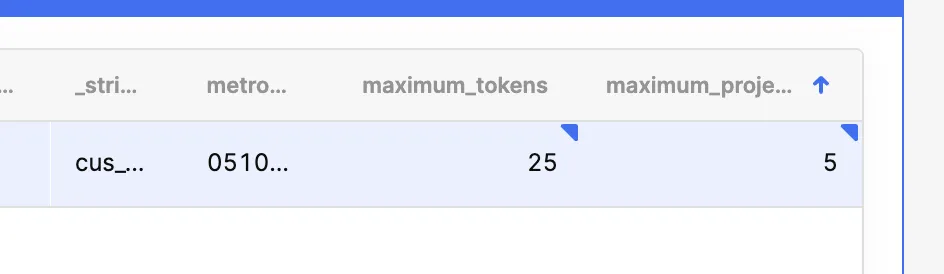
maximum_tokens: The amount of API keys an account is able to have.
-
maximum_projects: The amount of projects an account is able to have.
How to Enable/Disable Autopay
1. Navigate to the “Autopay METRONOME” section for a customer.
2. Press “Fetch Autopay” to fetch the current Auto-pay settings for the selected customer.
3. Enter in the Autopay Amount for this customer. This is the amount that we’ll attempt to get a customer back up to should they have their Autopay triggered. I.e., if they dropped to $4.99 and their amount was $10, we’d charge them for $5.01.
4. Enter in the Autopay Threshold for this customer. This is the amount that will trigger Autopay should the customer’s balance drop below it.
5. Click “Enable Autopay” to set this Autopay policy up. If disabling Autopay, click “Disable Autopay”.
How to Update the DB Deposit Amount
1. Navigate to the “Update DB Current Deposit Amount” section for a customer.
2. Enter in the value that you’d like to set their DB deposit amount to. Note: Please do this with high discretion. This will update the user’s DB balance amount only, and should only be used for corrections, not for providing credits or refunds.
3. Confirm in the customer row that the value for current_deposit_amount is what you’ve entered.
Clear a Customer’s Balance
1. Navigate to the “Set balance to $0” section for a customer.
2. Click “Reset” to clear the customer’s current_deposit_amount. Note: Please do this with high discretion. This will update the user’s DB balance amount only, and should only be used for corrections, not for providing credits or refunds.
Disable a Customer’s Billing
1. Note: This should be used only for internal purposes, as it allows customers to make a request with no billing incurred.
2. Submit the “Turn of billing” section for a customer.
Enable/Disable EOM Billing
1. Navigate to the “Toggle EOM Billing” section for a customer.
2. If moving a customer off of EOM billing, check the “Requires Deposit” box and submit. If enabling EOM for a customer, uncheck the “Requires Deposit” box and submit.
3. Confirm on the customer row that the new value for requires_deposit matches what you intended to configure.
Grant a Customer Credits (Free Credits)
1. Navigate to the “Add FREE Credits in METRONOME” section for a customer.
2. Enter in the amount of credits to give to this customer.
3. Click “Submit”.
4. Confirm that the customer’s current_deposit_amount has increased by the amount of credits you granted.
Grant a Customer Credits (Charged Credits)
1. (USE RARELY) In extremely rare cases, you’ll need to grant credits to a customer and charge their on-file payment method. To do so, you’ll navigate to the “Add Credit in METRONOME” section.
2. Enter in the amount of credits to give to this customer.
3. Enter in the “Amount to Pay” value, which is how much the customer will be charged for these credits. This value doesn’t have to match the amount of credits you’re giving them.
4. Enter in a “Note” about why you’re performing the credit grant this way.
5. Click “Submit”.
6. Confirm that the customer’s current_deposit_amount has increased by the amount of credits you granted.
7. Confirm in Stripe that the customer was successfully charged for the amount that you entered.
Delete a Customer’s Account (Use Rarely)
1. Navigate to the “Delete Account” section for a customer.
2. Click “Submit” and read the prompt that will appear.
3. If you want to continue, confirm via the prompt.
4. Confirm in the customer row that they’ve now had REMOVED+ added to the front of their account email address.
Note: You should never have to do this via Retool unless something has gone wrong on the website side for a customer. Customers have a self-serve way to delete their account on their account dashboard that is tracked via Looker and prompts them to provide a reason, leading to better business intelligence. Customers should be directed to use the self-serve method at all times, unless something happens to be broken on the Dashboard.
Void a Credit Grant for a Customer
If a customer incorrectly had credits granted to them, or needs them moved to a different account, you can void the credit grant for them to remove those credits from their account.
1. Look up the customer’s account in Metronome.
2. Navigate to “Plan credits” > “Grants” to see all historical credit grants for this customer.
3. Copy the credit grant ID.
4. Paste the credit grant ID into the “Void Credit Grant” section in Retool.
5. Press “Get Credit” to fetch the credit grant information from Metronome.
6. Verify that the info for this credit grant matches what is found in the Metronome UI.
7. Press “Void credit” to void this credit grant.
8. (If manual edits are necessary to update the customer’s balance) Head to the customer’s row in Retool and select the “current_deposit_amount” column. This value is editable, so we can manually edit the customer’s balance to reflect their voided grant. I.e., if their balance is $30 and you voided a grant for $20, you should change their balance to $10 to reflect the fact that the grant is now null and void.
9. Click “Save changes” to update the customer’s balance.
Fetch Historical Invoices for a Customer
Occasionally, customers will reach out needing all of their historical invoices for either record-keeping or to validate that their usage is being billed correctly. All invoices for a customer, whether they were created in Octane or Metronome, can be exported via Retool.
1. Navigate to the “Retrieve [customer_email] invoices” section in Retool and click “Retrieve”.
2. In the pop-up window, each invoice will have its own row with the invoice ID, value of the charge, issue date, status, and a download link.
3. To download the invoice you’re seeking, click the download button. To download multiple invoices, simply click the download button for each one after the other.
Adjust a Customer’s Concurrency
This is a common request that will be made in the #account-change-requests-and-refunds Slack channel and will look like this:
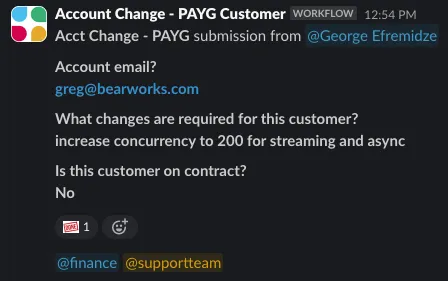
[When you are taking action, use the 👀 emoji to show this. Once this is actioned, please check it off by adding the]{.mark}  [emoji and tag the requester in the comments with a message letting them know that this task is completed.]{.mark}
[Note: If the streaming concurrency request is over 500, you will need to check with the engineering team about this increase. Ask Lee or a senior support engineer for more information about checking on peak usage and traffic patterns, which is important for the engineering team to know.]{.mark}
To make this change:
-
Navigate to the Update Account section on the customer’s Retool account page.
-
Change the throttle limits to the requested amounts.
-
Click update.
If you do not see the changes reflected on the account, refresh the page and search for the customer again.
Adjust a Customer’s Maximum Tokens or Projects
These amounts can be adjusted right on the table. Once the numbers are adjusted, remember to click Save.
Account and Transcript Explorer
Accounts
Upgrade / Downgrade a Customer
1. Enter the customer’s ID or email in the respective box on the left-hand side.
2. If upgrading the customer, use the “Manual Upgrade to PAYG” Upgrade button to upgrade them to PAYG without needing a deposit or card on file. This should be done only in rare cases. The customer should either upgrade properly using the enterprise link or upgrade with their own card on file like normal in nearly every case.
3. If downgrading the customer, use the “Downgrade user back to free tier” Submit button. Again, this should only be done in rare cases or for internal use cases.
Transcriptions
Look up Transcript Information
1. Enter the transcript ID from the customer in the left-hand field and press “Search”.
2. Transcript details will populate on the right-hand side, showing which parameters were enabled.
Pulling a Historical Transcript / Utterances / Words / Word Boost List from the Database
1. Look up the transcript using the above steps.
2. Press the “Transcript” / “Utterances” / “Words” / “Word Boost” button to have the relevant info from our database downloaded locally.
Pulling Internal Audio Copy from our Database
Original files submitted to our API are deleted after processing, but we do retain an internal copy after it’s transcoded for 72 hours. In case the original `audio_url` is unavailable when troubleshooting, you could potentially fetch a copy of the audio from our internal database using this tool, so long as the file was transcoded within the most recent 72 hours.
1. Look up the transcript using the above steps.
2. Press the “Audio File” button to have the copy of the file (if available) downloaded locally. This will be in our transcoded 8 kHz WAV variant.
LeMUR
Looking up a Request
1. Enter the request ID from the customer in the left-hand field and press “Search”.
2. Request details will populate on the right-hand side, showing which models were used, as well as the context, prompt, and other details provided in the context window.
3. To export a copy of this data, press “Download S3 data” to get more information on the request.
Finding Account from API Key
You can use this dashboard to search for a user based on their API key.