
How to use Salesforce as a Support Engineer
This Playbook will comprise of mini-playbooks that make up how to use Salesforce as a Support Engineer. These will show you how to complete certain functions and find relevant information for your role.
These include (links lead to the section in this doc):
- How to find Customer Accounts
- How to use the Product Requests Tracker
- How to view CSM Accounts
- All Resources
How to find Customer Accounts
Introduction
This Playbook will provide information on how to look up customer accounts on Salesforce and what information you would typically look for.
An example workflow where you would typically do this is:
-
Speaking to a user on Live Chat and they mention previous context (e.g. they have been in contact with a member from our Sales team)
-
Search the user on Salesforce and calibrate relevant information (our previous contact with this customer)
-
Use this information to guide how to interact with the user the rest of the conversation and loop in the relevant representative if necessary.
Procedures
The easiest way to find a customer account is to search their email in Salesforce on top of the top toolbar. You can also be more general and search for their company name. 
A general search can yield multiple results and entries from one company including Leads, Accounts, Opportunities etc. These are records of different stages of the Sales cycle and different contacts that we have in the database. For this example, we should look for the “Accounts” title that correlates with the selected user.
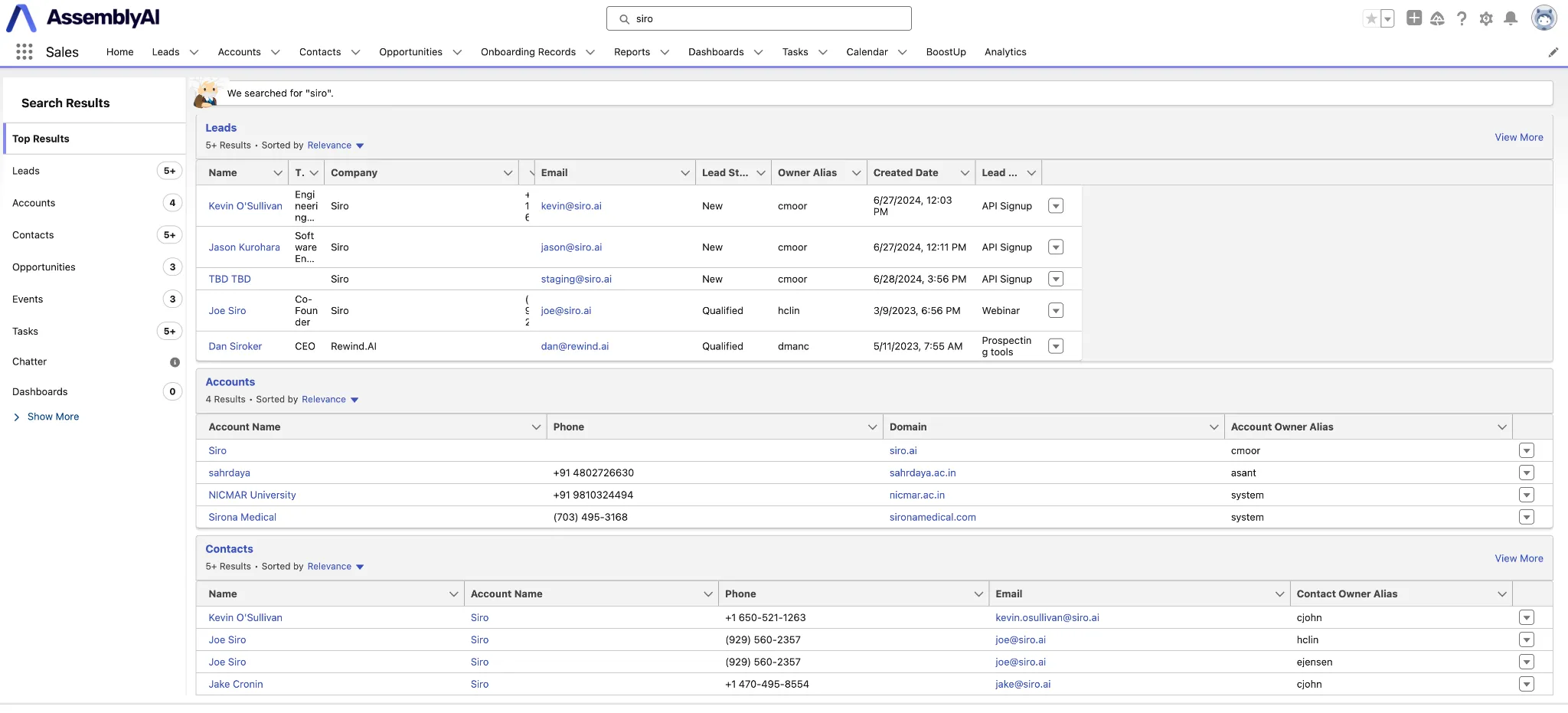
Clicking the Siro under Accounts from the Screenshot, we can find a detailed customer profile and view previous interactions that we’ve had. Here are a couple of relevant fields that a Support Engineer should look out for:
- Account Team: Includes the pre-sales Account Executive (Cooper) and Assigned CSM in post-sales (Travis)

- Account Information: General context on what the business is, how big it is and Looker Dashboard for more usage analytics
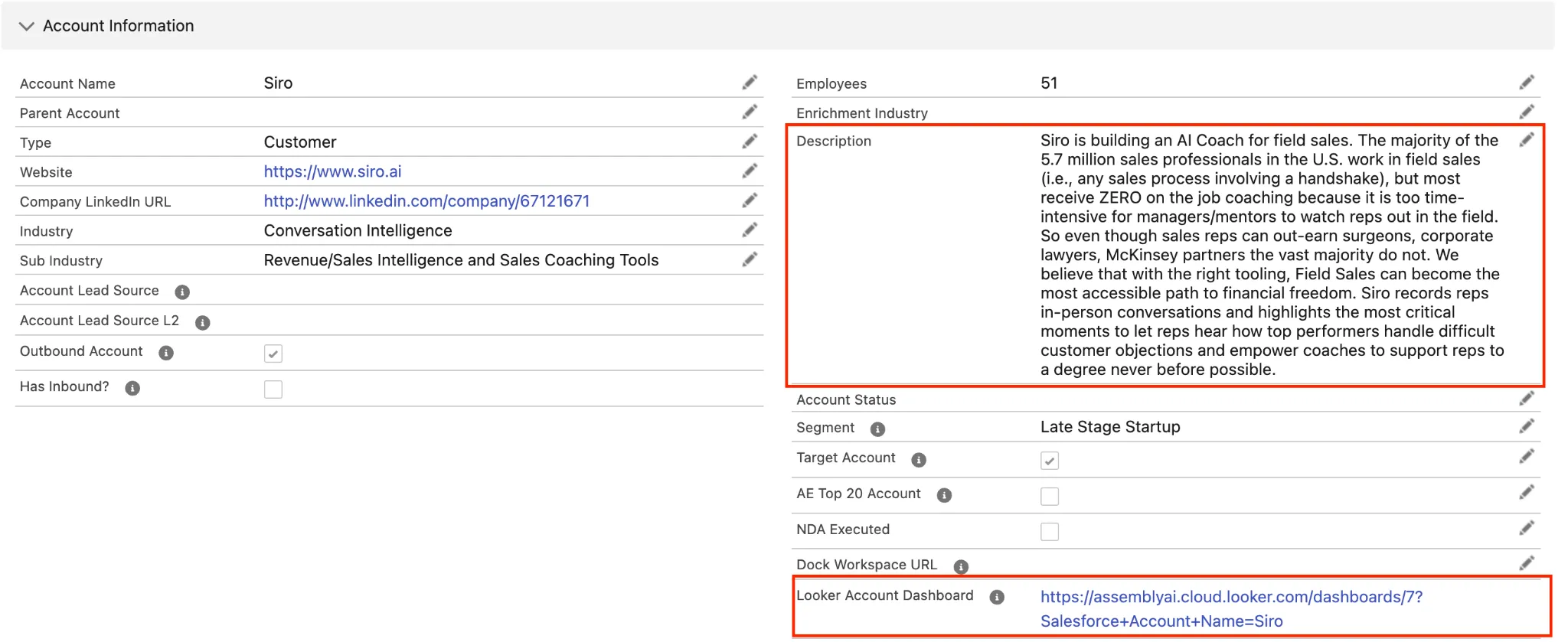
- Customer Details: Contract details with context on when this customer started and handling any payment inquiries

How to use the Product Requests Tracker
Introduction
This Playbook will provide information on how to raise Product Requests in Salesforce. These usually are requested by customers on Slack or live chat/tickets and the responsible Support Engineer should raise these accordingly. This list will be reviewed and curated by our Product team and help decide which new features to prioritize in the future.
Procedures
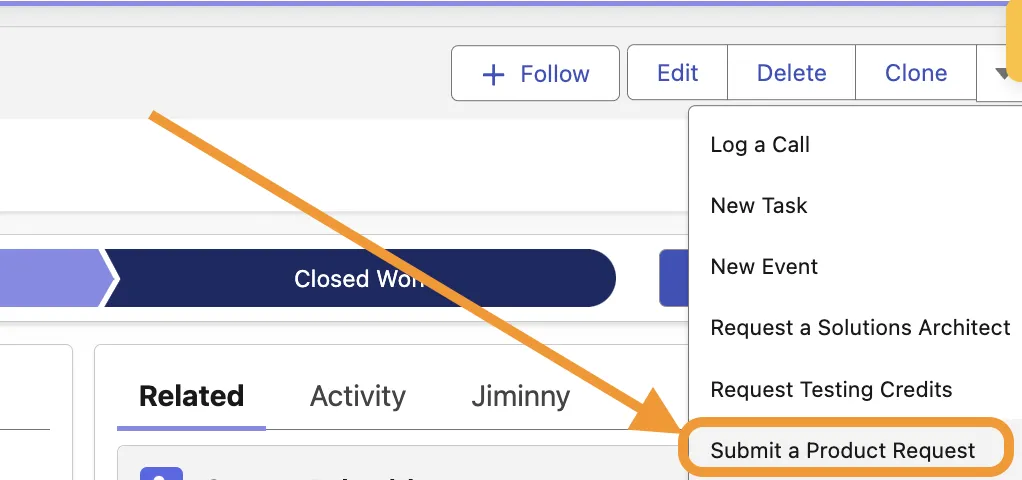
- From any Opportunity, Account, Contact, OR Lead record, click the dropdown on the top right next to Edit, etc. and select “Submit a Product Request”
-
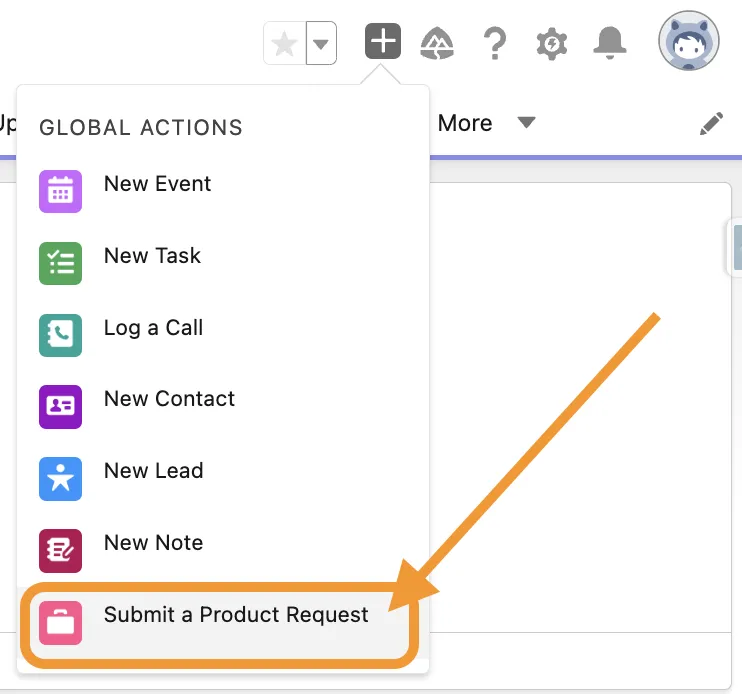
You can also click the + sign at the very top (“Global Actions”) from ANY page in Salesforce to submit a request; you’ll just be prompted to select an Opp/Account/Contact/Lead to link it to
a. If an opportunity does exist related to the request, be sure to link it so that Product has the most complete information about the use case, potential revenue, etc. to help with prioritization
Let the Product team know if you have any questions or feedback on this process! This helps ensure Product has the most complete, accurate, and up-to-date information when building out their roadmap with the features and improvements that will provide the most value to prospects and customers
Generally, we should raise any Product Request if we find that the customer email is on Salesforce. If the user is not on Salesforce (indicating that they aren’t a Lead or Opportunity), we can just tag their ticket as “Missing Feature”.
How to view CSM Accounts
Introduction
This Playbook will provide information on how to look up CSM (Customer Success Manager) accounts in Salesforce. These accounts are usually under contract or high-usage accounts in our growth plan that are allocated to a CSM. Viewing these accounts will help quickly identify the scope of the company and the related CSM to loop in if necessary.
Procedures
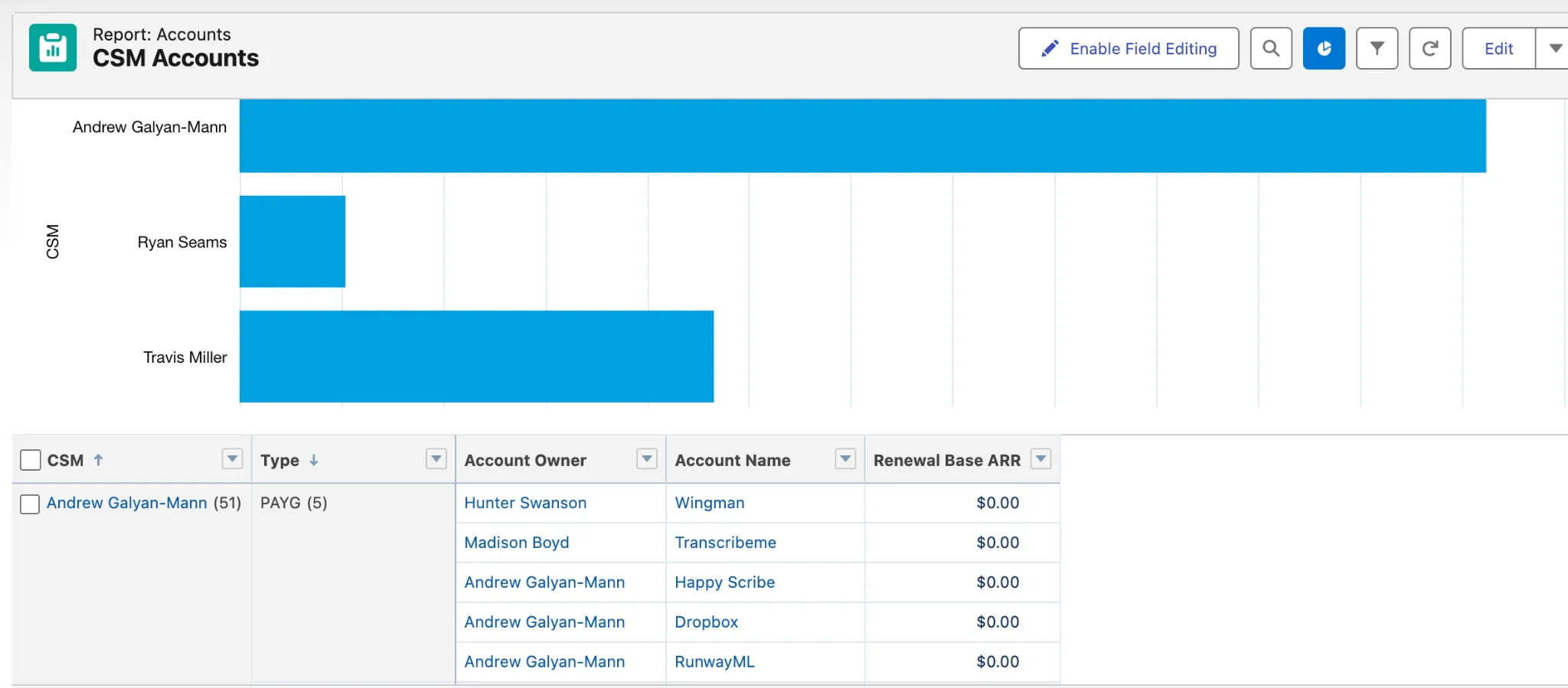
The CSM Accounts Report can be found in Salesforce. The report will show the Account Name and associated CSMs and Account Executives as well as recurring revenue for accounts under contract.
Use this information to map each customer to the corresponding Account Manager and Account Executive. This also gives a quick overview of the size of the customer (Renewal Base ARR) and provides a general directory to reference.
Definitions
CSM Column
These are the Customer Success Managers that own the account and are in communication with the Account during the post-sales cycle.
Type Column
Under the ‘Type’ Column there are a couple of definitions to be familiar with:
-
PAYG
- Current Pay-as-you-go customer with high potential or usage
-
Customer
- Current contract customer
-
Churned
- Previous customer that is no longer using AssemblyAI
-
Prospect
- High potential customer with high potential
-
Former PAYG/Inactive
- Former Pay-as-you-go customer but no longer using AssemblyAI
Previously, our Sales team was focused on getting each customer to sign contracts but we have since shifted away from that emphasis. This means that some customers with higher volumes require a dedicated CSM while not being on a contract. This is why you will see PAYG in the CSM list despite not contributing to the Renewal Base ARR total.
To find the usage/spend of these PAYG users that are not tracked in the CSM list, you can query their AssemblyAI email in the Looker Usage Dashboard.
Account Owner Column
These are the Account Executives that own the account and were in communication with the Account during the pre-sales cycle.