
Pylon Issue Details Fields
Introduction
Pylon is a tool that we use in support to manage our customer conversation. Pylon handles conversations across Slack, live chat, support tickets, and email. These conversations are referred to as issues.
This playbook will cover how to label tickets using the Issues Details section.
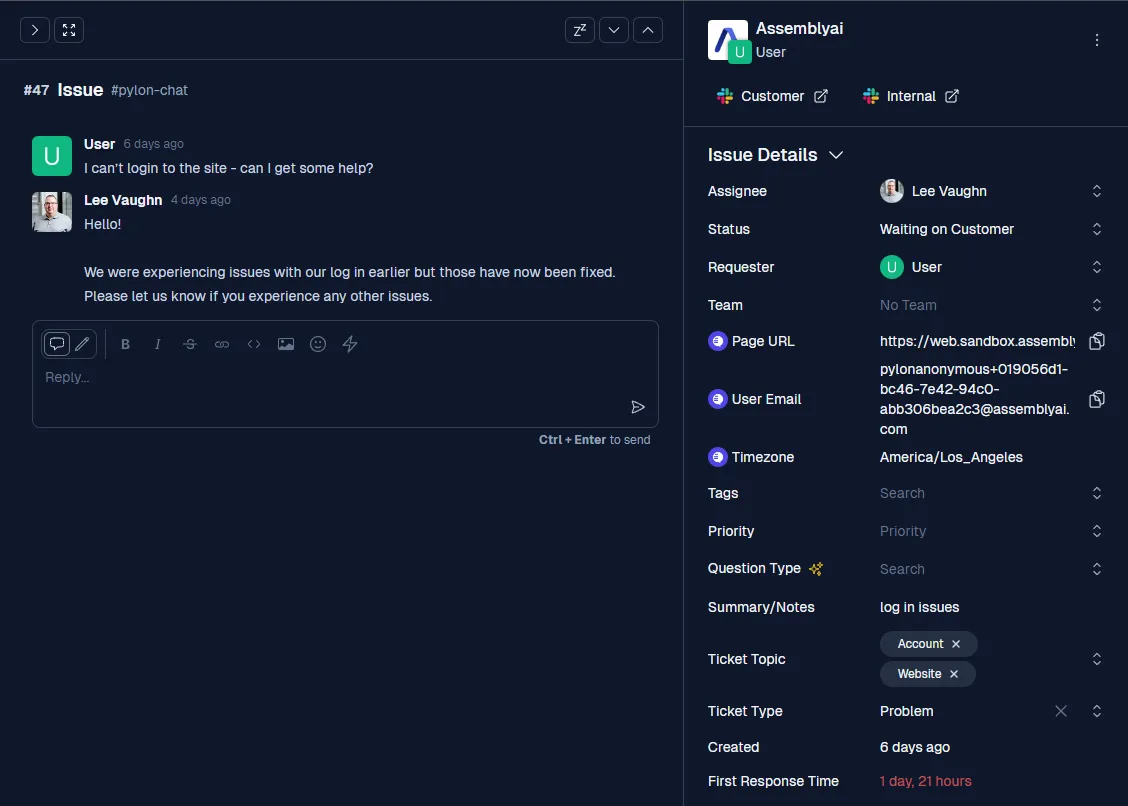
Procedures
Below you will find a description of each field in the Issues Detail section, how that field should be used, and the different options available for that field. These fields will be presented in the following order:
-
Fields that SEs need to complete
-
Fields that will automatically be filled out
-
Fields that we do not currently used
Fields that SEs need to complete:
Assignee *
-
Purpose: Shows who the issue is assigned to
-
How to Use: By default, an issue will automatically be assigned to the first person to reply to the ticket. You can override or change this by selecting the appropriate team member from the dropdown.
-
Options:
- All AAI team members in Pylon
Status *
-
Purpose: Shows the current status of the issue
-
How to Use: By default, the status will be updated based on the latest customer or team member response. You can change or override this status by selecting the appropriate status from the dropdown
-
Options:
-
New
-
Waiting on You
-
Waiting on Customer
-
On Hold
-
On Hold (Bug Reported)
-
Closed
-
Team
-
Purpose: This is an optional field that is used as needed when a team other than Support handles an issue
-
How to Use: If a team other than Support handles the issue, select the appropriate team team from the drop-down
-
Options:
- Support (not used currently)
- Solutions
- Sales
- TAM
- Applied AI
- Product
- Research
- Marketing
- Security
- Tech
Tags
-
Purpose: This is an optional field that will only be used in certain special situations where we want to trigger a certain workflow based on tags
-
How to Use: Select the appropriate tag if you want to send a CSAT for a Slack conversation, track a bug report, or track a feature request. These tags should be removed once a bug has been fixed and the customer has been contacted. There are a number of options that are specifically related to the Sale’s teams automated messages. The tags listed below are the ones relevant to Support.
-
Options:
-
Anything else? - for Sonny (AI Bot) to ask this of a customer
-
Bot Assigned (Support) - for when the ticket is assigned to Sonny
-
Bot Assigned (Sales) - for when the ticket is assigned to Johnny
-
Bot Unassigned - for when Sonny/Johnny is unassigned from a ticket
-
Bug Reported (not currently used)
-
CSAT - (for when you want to initiate a CSAT survey for a Slack conversation)
-
Datadog Alert - (automatically added as part of automated alerts)
-
Duplicate - (for when duplicate issues cannot be merged)
-
Feedback - When a customer provides feedback on product
-
No CSAT - (for when you do not want a CSAT survey to be sent for a chat, email, or contact us conversation)
-
Summary / Notes *
-
Purpose: This field should be a TLDR summary of the issue
-
How to Use: When the issue is first created at a short description of the issue, this may need to be updated as your conversation progresses
-
Options:
- Text field, type a TLDR summary
Issue Topic *
-
Purpose:This field will provide a high level overview of the topics the issue relates to
-
How to Use: Topics will be assigned via AI as the ticket conversation progresses. If, once it is time to close the ticket, some of the topics that were selected don’t apply or you need to add more, select options from the dropdown to reflect the content of the issue conversation (multiple topics can be selected)
-
Options:
-
Account - for issues like invoice request, usage data, payment issues, etc
-
ASR (Best) - for issues specifically related to Best ASR output
-
ASR (Nano) - for issues specifically related to Nano ASR output
-
ASR (Slam) - for issues specifically related to Slam ASR
-
ASR (Universal) - for issues specifically related to Universal ASR output
-
Async STT
-
Auto Chapters
-
Automatic Language Detection
-
Billing
-
Captions
-
CLI
-
Content Moderation
-
Custom Spelling
-
Custom Vocabulary
-
Data Opt Out
-
Disfluencies
-
Dual-Channel
-
Duplicate
-
Entity Detection
-
Free Tier
-
General Error -for vague error related issues, will often get reclassified as we learn more
-
HR
-
Incidents - specifically for issues related to an officially declared incident
-
Key Phrases
-
Legal - for issues related to things like Terms of Service, BAA, etc
-
LeMUR
-
Missing Feature
-
Multichannel
-
N/A - for issues completely unrelated to our product or spam
-
Nano
-
Other - for issues related to ou product that don’t fit into any other category
-
Payment - for questions or issues related to payments
-
PII Redaction
-
Playground
-
Pricing
-
Product - for broad issues about our product, how it works, what it can do, etc
-
Profanity Filtering
-
Resources - for issues related to things like blogs, YouTube tutorials, documentation, etc
-
Sales
-
SDKs
-
Security - for issues related to things like SOC2, GDPR, data privacy, etc
-
Sentiment Analysis
-
Slam
-
Speaker Diarization
-
Startup Program
-
Streaming STT
-
Summarization
-
Supported File Types
-
Supported Languages - for issues related to what languages we support
-
Timestamps
-
Topic Detection
-
Universal
-
Uploads
-
Voice of Customer - positive or negative feedback from customers
-
Webhooks
-
Website - for issues like log in problems, account creation problems, bad links, etc
-
Word Search
-
3rd Party Integrations
-
Issue Type *
-
Purpose:This field will reflect the type of the issue, .i.e what the issue represents
-
How to Use: Issue type will be assigned via AI as the ticket conversation progresses. If, once it is time to close the ticket, some of the issue types that were selected don’t apply or you need to add more, select the appropriate option(s) based on the purpose of the ticket (you can select more than one option)
-
Options:
-
Bug Report - for issues where a Jira ticket is created for a bug
-
Duplicate - for tickets where the customer sends in multiple, identical tickets
-
Feature Request - for issues where a product feature request is created
-
Feedback - for issue containing positive or negative feedback about our product
-
Internal - for issues that a created internally, like an Auto-pay failure notification
-
N/A - for issues that are completely unrelated to our product
-
Other - for issues related to our product that don’t fall into any other category
-
Problem - use this option for issues related to anything not working as expected
-
Question - for issues involving any type of question, which will be a large % of issues
-
Spam - for spam or other unsolicited outreach
-
Task - for issues that involve our team doing something, i.e. invoice request, email change, etc
-
Fields that will automatically be filled out:
Requester
-
Purpose: Shows the customer the issue is associated with
-
How to Use: This field will be automatically filled out when the issue is created
-
Options:
- N/A (don’t change)
Page URL
-
Purpose: This field shows the webpage the customer was on when they started the live chat (only appears for issues originating from a live chat)
-
How to Use: This field will automatically be filled in when the issue is created
-
Options:
- N/A (don’t change)
User Email
-
Purpose: This field shows the email address of the person who initiated the chat
-
How to Use: This field will automatically be filled in when the issue is created
-
Options:
- N/A (don’t change)
Timezone
-
Purpose: This field shows the timezone of the customer in chat (only appears for issues originating from a live chat)
-
How to Use: This field will automatically be filled out when the issue is created
-
Options:
- N/A (don’t change)
Ticket Form
-
Purpose: This field shows the type of form the customer filled out (only appears when the issue was created by something like the Support or Feature request form)
-
How to Use: This field will automatically be filled out when the issue is created
-
Options:
- N/A (don’t change)
Question Type
-
Purpose: This field shows the type of question as determined by the Pylon AI
-
How to Use: This field will usually but not always be filled out or updated based on the issue conversation
-
Options:
- N/A (don’t change)
Created
-
Purpose: This field shows when the ticket was created
-
How to Use:This field will automatically be filled in by Pylon
-
Options:
- N/A (don’t change)
First Response Time
-
Purpose: This field shows the amount of time that elapsed before the first response from our team
-
How to Use: This field will only show up after a ticket has been responded to, then it will show the amount of time it took for our team to respond to the issue
-
Options:
- N/A (don’t change)
Subtag
-
Purpose: This field is used for automated labeling of tickets as part of a project between Solutions, CSMs, and Product
-
How to Use: This field will show labels generated by an LLM related to product areas
-
Options:
- N/A (don’t change)
Fields that we do not currently use:
Priority
- Purpose: We do not currently use this field