
Slack Playbook
Slack is our main form of communication both internally and with many of our key customers. We also use Slack Huddles as a way to quickly communicate with each other.
During your shift, you will want to keep Slack open and continually monitor it for new posts and new activity on existing threads. Our goal is to respond within five minutes to any customers who reach out in Slack.
Setting Up Slack
If you are new to Slack, check out this article on setting up Slack and this quick start guide on using Slack.
When you first join Slack you will be added to certain channels by default. Here is a list of channels that you will want to make sure that you have joined. Because you will be in dozens of channels it can help to organize these channels into custom sections. You can learn more about that on this page.
Notifications
To set up notifications, click on “AssemblyAI” and select “Preferences”. Under “Notifications” be sure toggle “All new messages”.
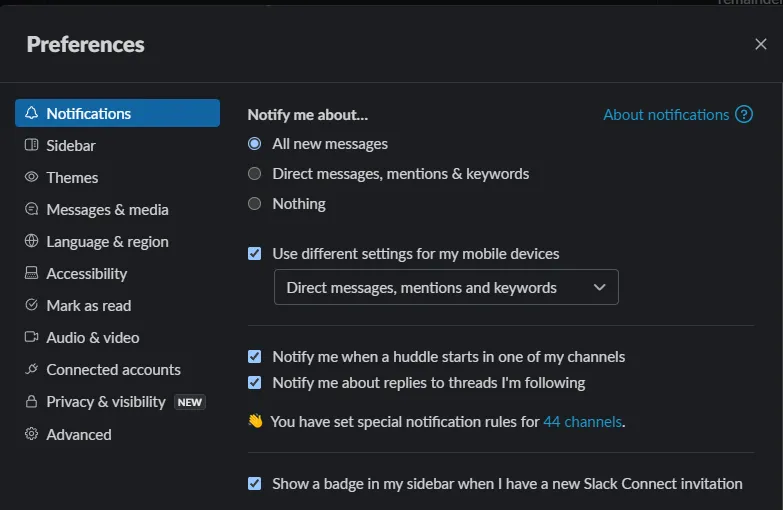
This will ensure that you also receive notifications for all customer channels and other key channels without having to set those up individually.
From there, you can change the settings for individual channels as needed if you don’t need to be notified of all new messages for that channel.
For example, for channels like #ask-engineering or #ask-marketing you might only want to receive notifications when you are mentioned. In that case, right-click the channel name and then select “Change notifications”.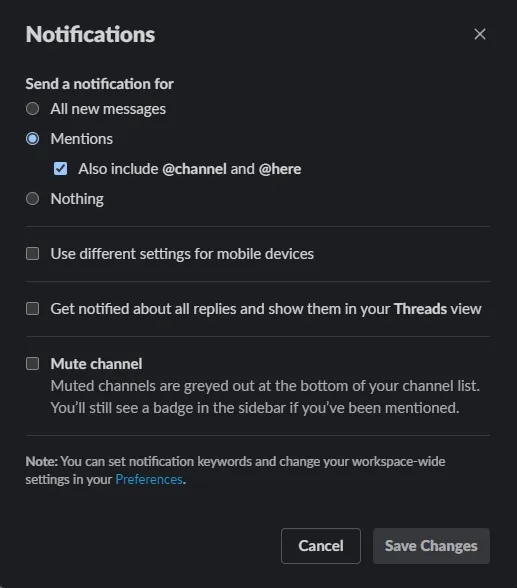
As you customize which channels are “All new messages” and which are “Mentions” be sure that all customer channels remain set to “All new messages”.