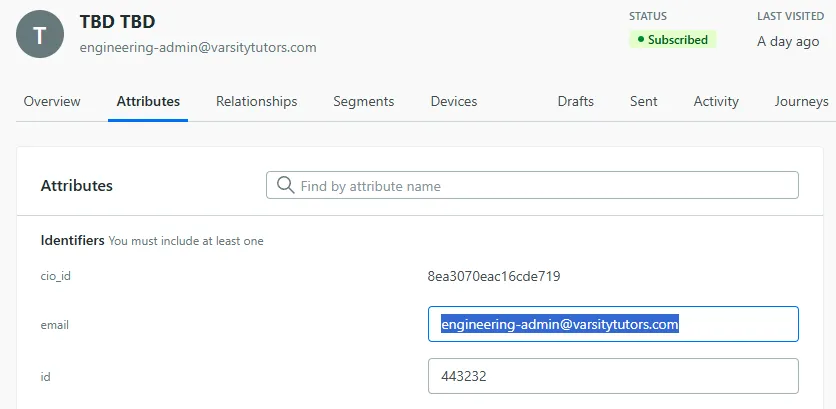
How to change the email address associated with an account
Using Retool Workflow
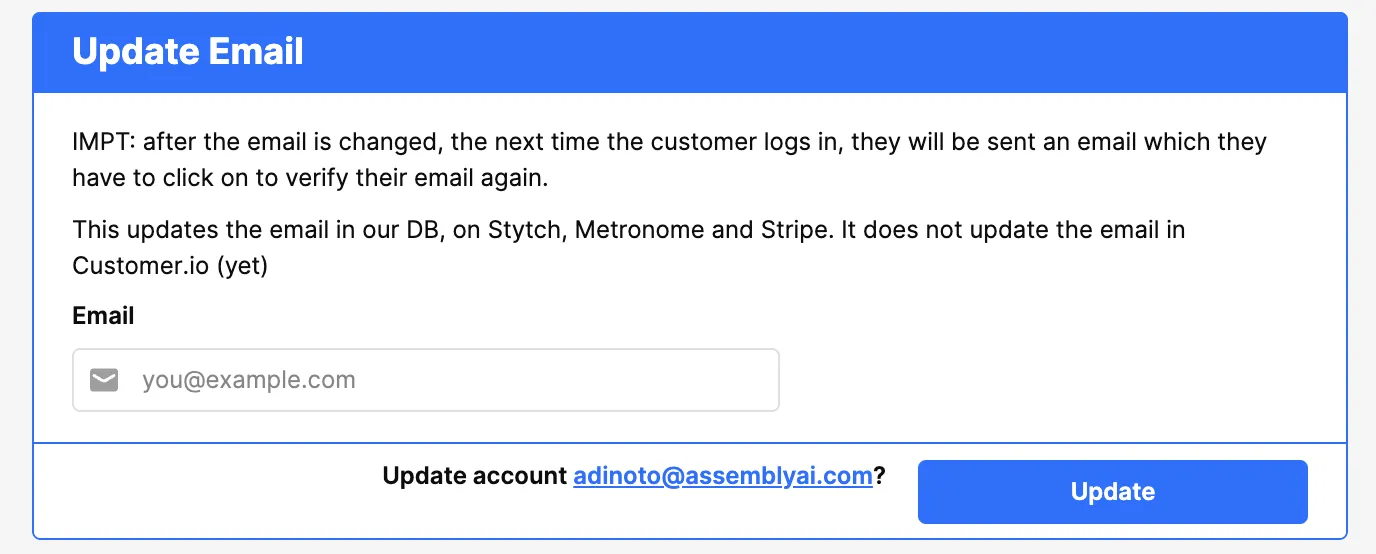
Updating a customer’s email address can be done directly in Retool using the Update Email workflow. This workflow will update the email address in Retool (the DB), Metronome, Stripe, and Stytch. However you will still have to manually update their email in customer.io.
Below is a screenshot of the Update Email workflow in Retool where you just input the new email and click Update:
Updating Email Manually if Retool Workflow is Not Working
How to Edit in Retool

Use the Account Management Dashboard to search for the account’s old email address.

Double click on the email column and change the text to the new email address. Click on ‘Save Changes’.
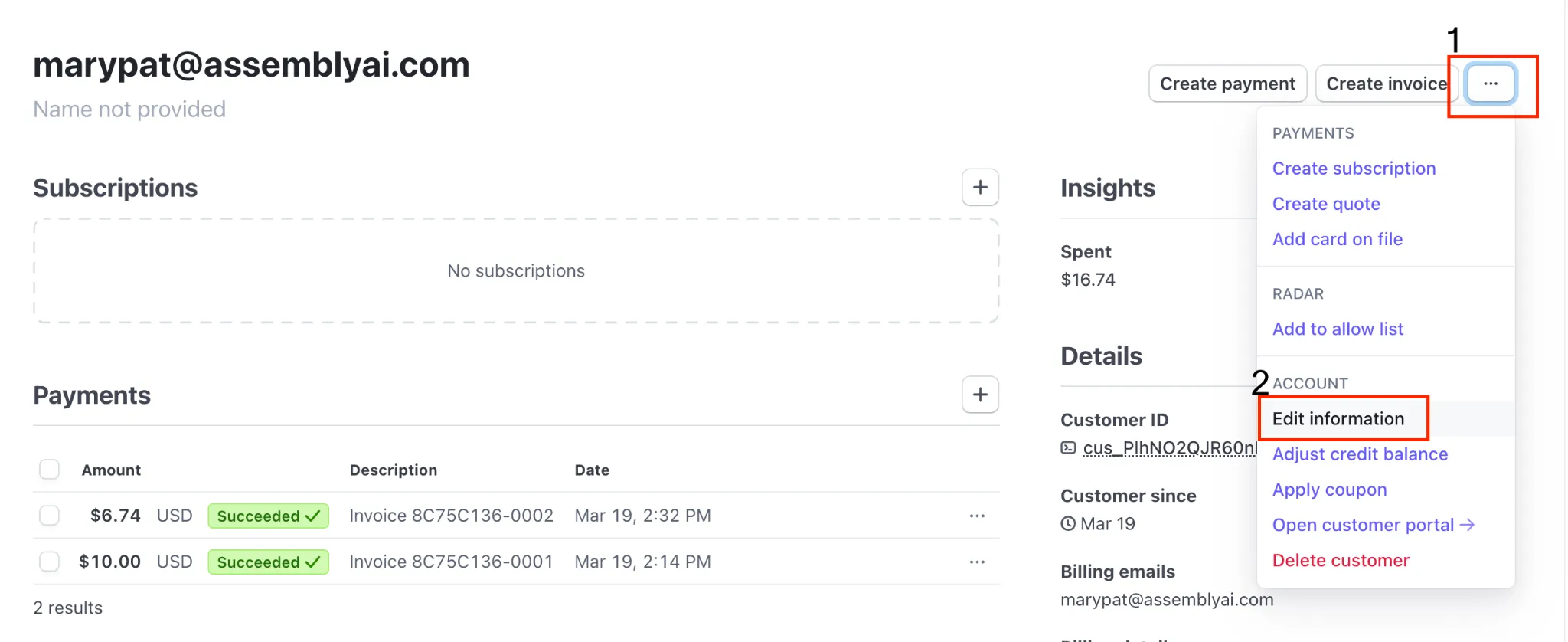
How to Edit in Stripe
-
Find Customer via Stripe or Metronome
- Via metronome:
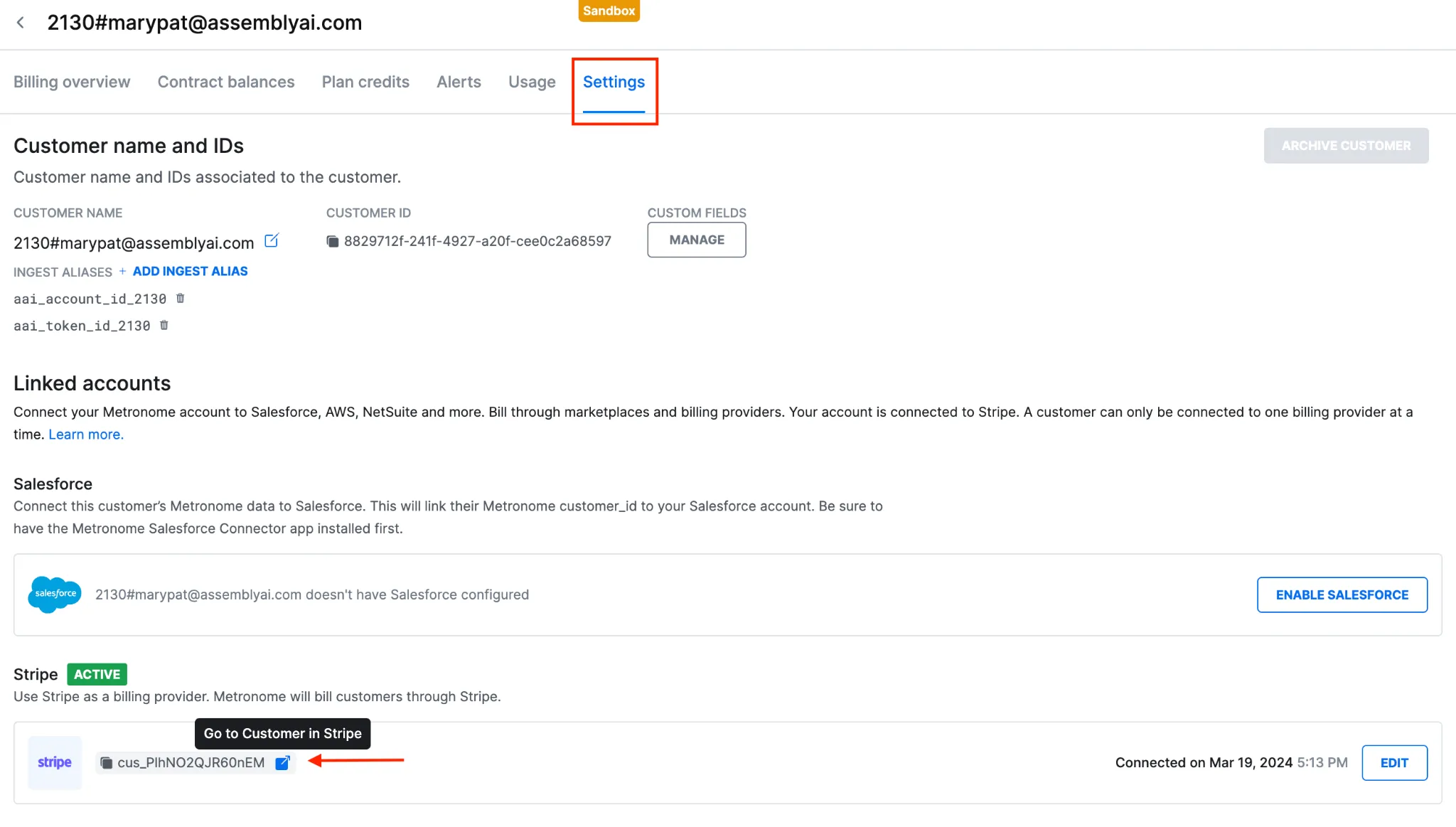
- From the Stripe customer page
How to Edit in Metronome
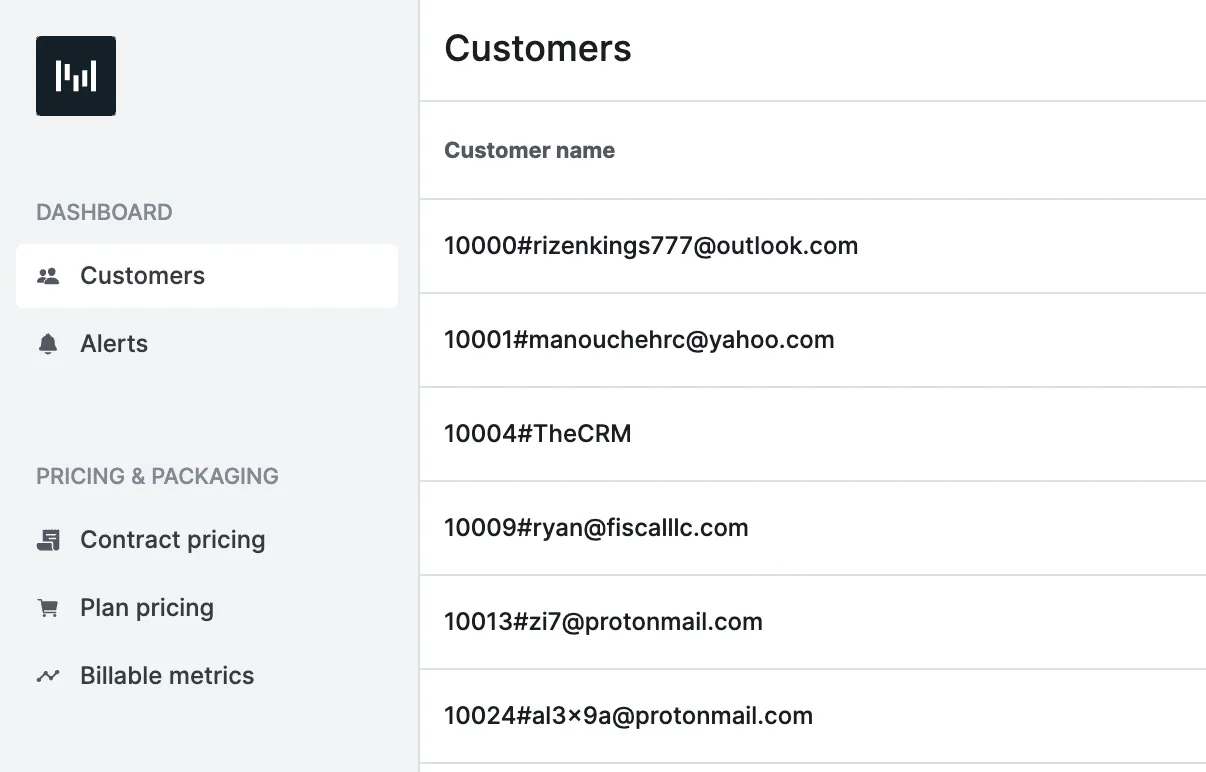
Search for the customer under the ‘Customers’ tab
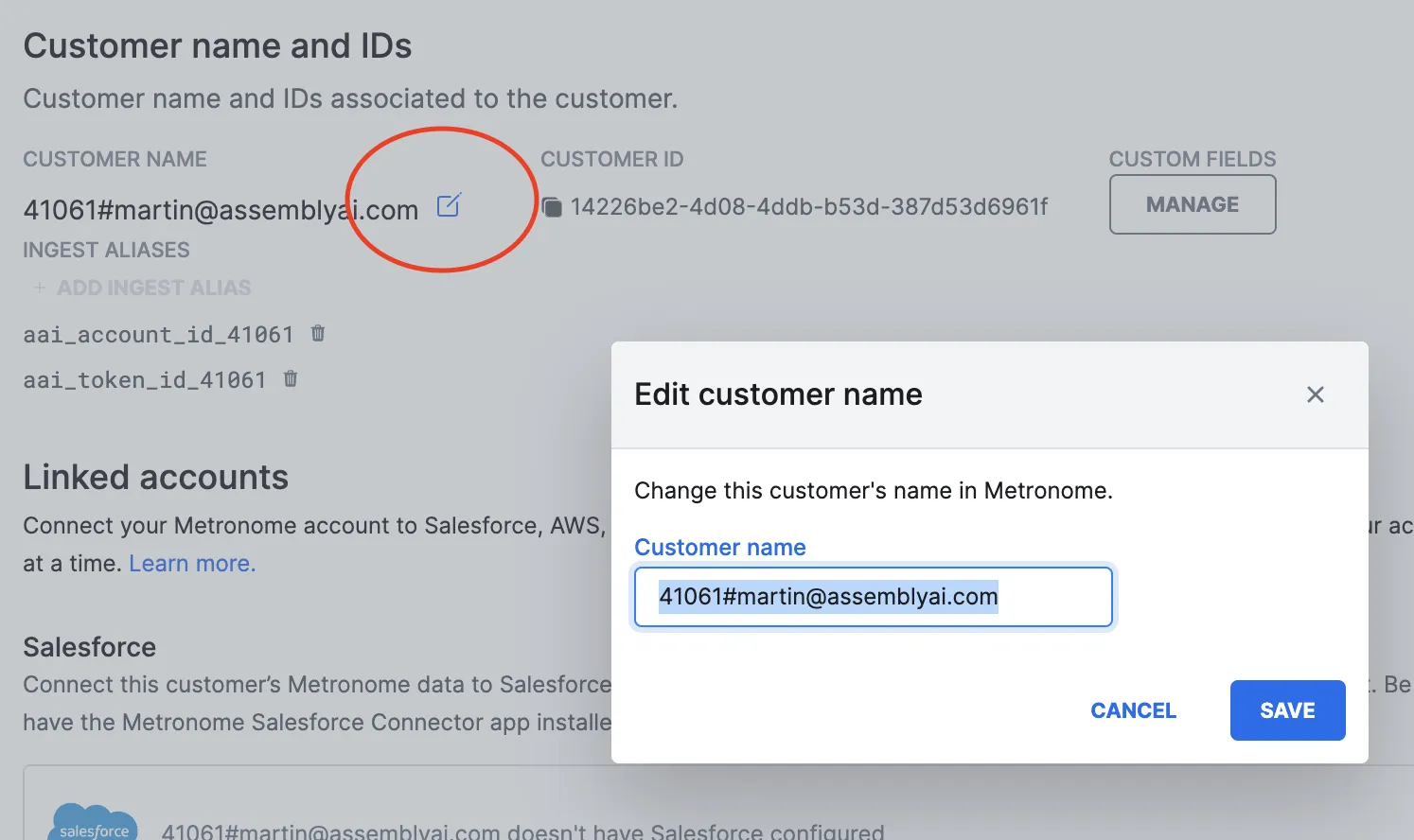
On the customer page, click the edit button next to the current customer name and change the email address. Please keep the ID before # the same.
How to Edit in Customer.io
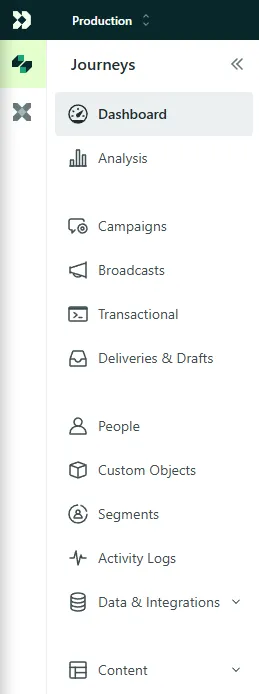
Sign into customer.io using your Google credentials. Select “People” from the menu on the left side of the screen.
Enter the email address into the search bar and select the associated account.
Select manage under the Identifiers section.
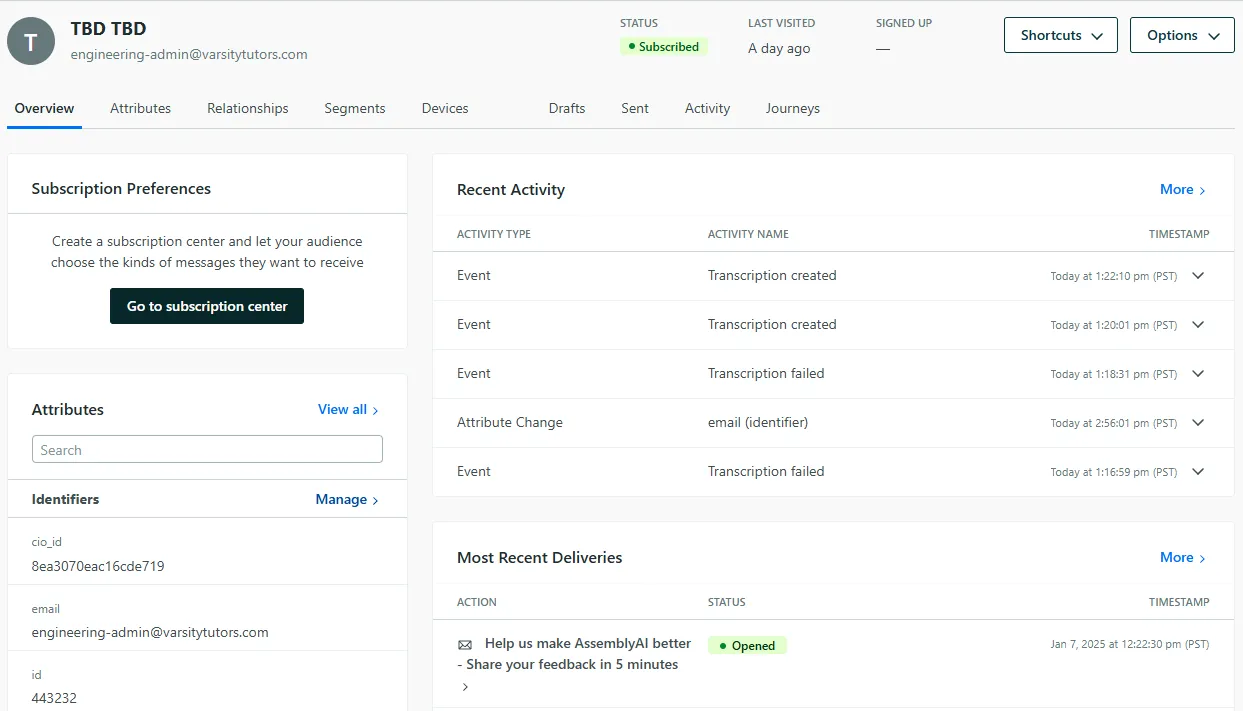
Replace the old email address with the new email address and click “Save Changes”..