
How to Handle AWS Marketplace Requests
This information pertains the Support side of any AWS requests that come into the #account-chage-requests-and-refunds Slack channel. For more information that involves actions taken by other GTM teams for AWS requests, you can refer to this Google document.
Support Action for all AWS Registrations
-
You will receive a notification in #account-change-requests-and-refunds with offer details and instructions whenever a new AWS contract is completed and the AE has confirmed the associated API Account ID.
-
In ReTool:
- Navigate to the Account Management app
- Look up the account by email or API account number
- Under “Configure [account email] to use AWS Marketplace”, click “Submit”
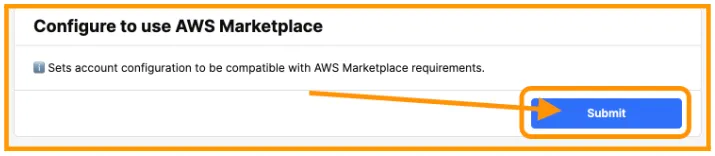
- This will move the customer to EOM billing and hide pricing/credit card options on the front end
- If the account is a parent account with associated child accounts: Repeat this step for all associated accounts
- The alert will note whether the primary account has additional accounts associated, with a link to view all associated account IDs
- No additional steps are required for child accounts as autopay should already be disabled and their Stripe accounts disconnected
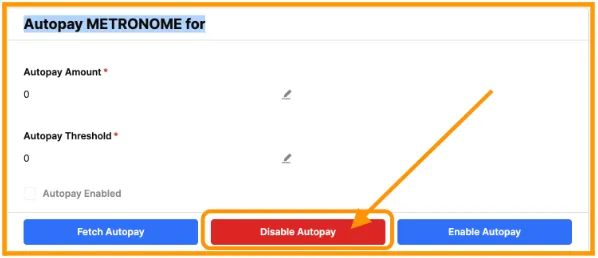
- Next, in the “Autopay METRONOME for [account email]” widget, click “Disable Autopay”
-
In Metronome:
- Disable the Stripe account associated with this user account from the related Metronome account
- Navigate to the user’s account in Metronome and click into the “Settings” tab
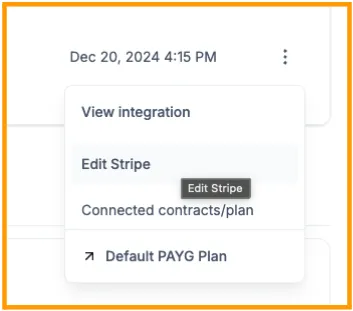
- In the “Connected integrations” section, under “Stripe”, click the three dots next to the connected date

- Click “Edit Stripe”
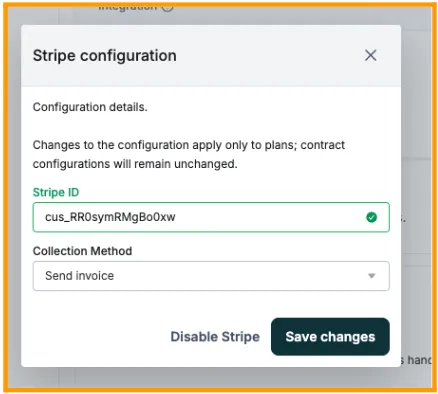
- Click “Disable Stripe”. This will prevent the user from receiving any invoices from Stripe
- If the Slack alert includes custom rates: Update the user’s rates to the rates as outlined
- If the user is upgrading from a free account: Update the user’s throttle limit to standard PAYG limits (Throttle Limit = 200, Throttle Limit Realtime = 100) or custom limits as outlined by the AE. If the user is already set up with custom throttle limits, do not adjust those limits.
- Disable the Stripe account associated with this user account from the related Metronome account
-
Reply to the Slack request with any questions and to confirm when the account has been updated
Support Action for all AWS Cancellations
- For each account included in the alert, check if they were originally on the Free plan and moved directly to AWS or if they were originally PAYG before AWS and had a Stripe account
-
If they were previously a Free account:
- Turn off EOM billing
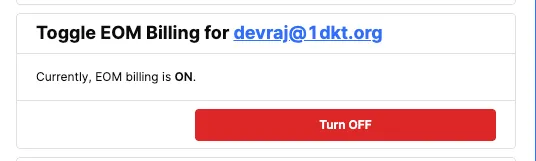
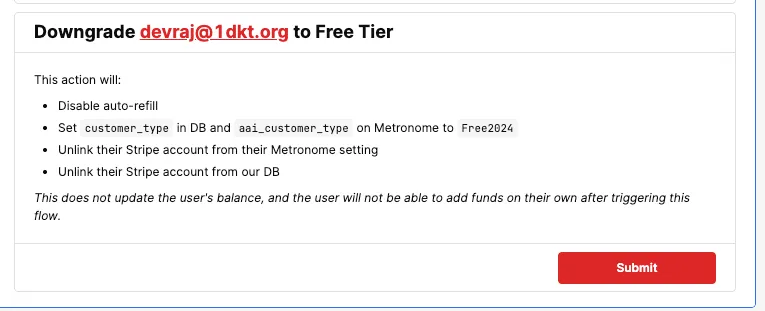
- Use the Retool workflow to downgrade them to Free
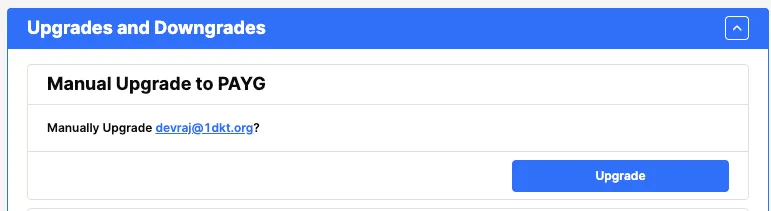
- Manually upgrade them to PAYG
- Turn off EOM billing
-
If they were previously a PAYG account:
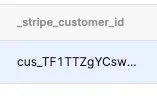
- Change their customer type to PAYG and add their Stripe customer number under that column in Retool
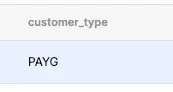
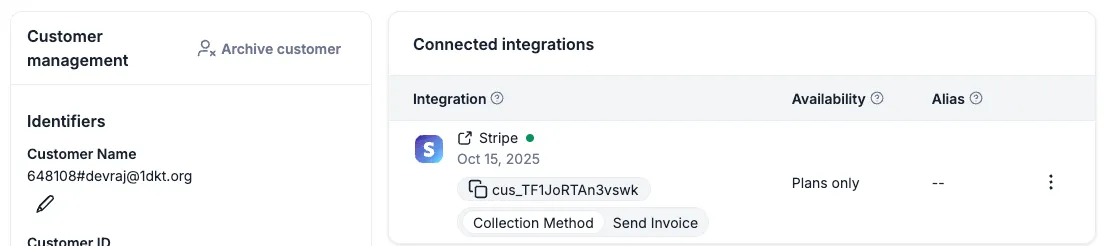
- Ensure that their Stripe account is connected in Metronome
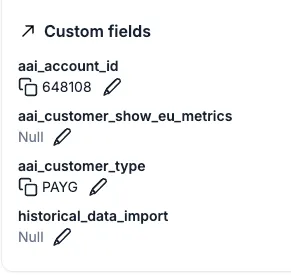
- Make sure that their customer type in Metronome is changed from Marketplace to PAYG
- Turn off EOM billing
-
- Send an email to the impacted accounts to ensure they are aware of the change and to set up auto-pay in their dashboard using this template