
How to handle DataDog Alerts
Introduction
This playbook is intended to cover the steps needed to appropriately handle a DataDog alert from the #datadog-alerts & #datadog-new-implementation-alerts channels to provide the most value to our customers and improve our proactivity.
To note:
Some of the actions will require a level of improvisation from the Engineer due to the variety of possible circumstances, if you’re unsure on what action to take it is best to check with someone by @ing the team in a reply in the #datadog-alerts or #datadog-new-implementation-alerts channel.
Async Concurrency Breach Alert
The Async concurrency breach alert is triggered when an account exceeds its concurrency limit by 10%. We use a 10% margin to reduce spam and to focus the alerts on accounts that indicate their current concurrency limit may not be suitable for their needs.

-
Mark the message with an emoji such as 👀to signal you’re handling this alert.
-
View the customer’s email address to identify if they’re a target/important account or not, if they are - contact the customer immediately to discuss the situation.
-
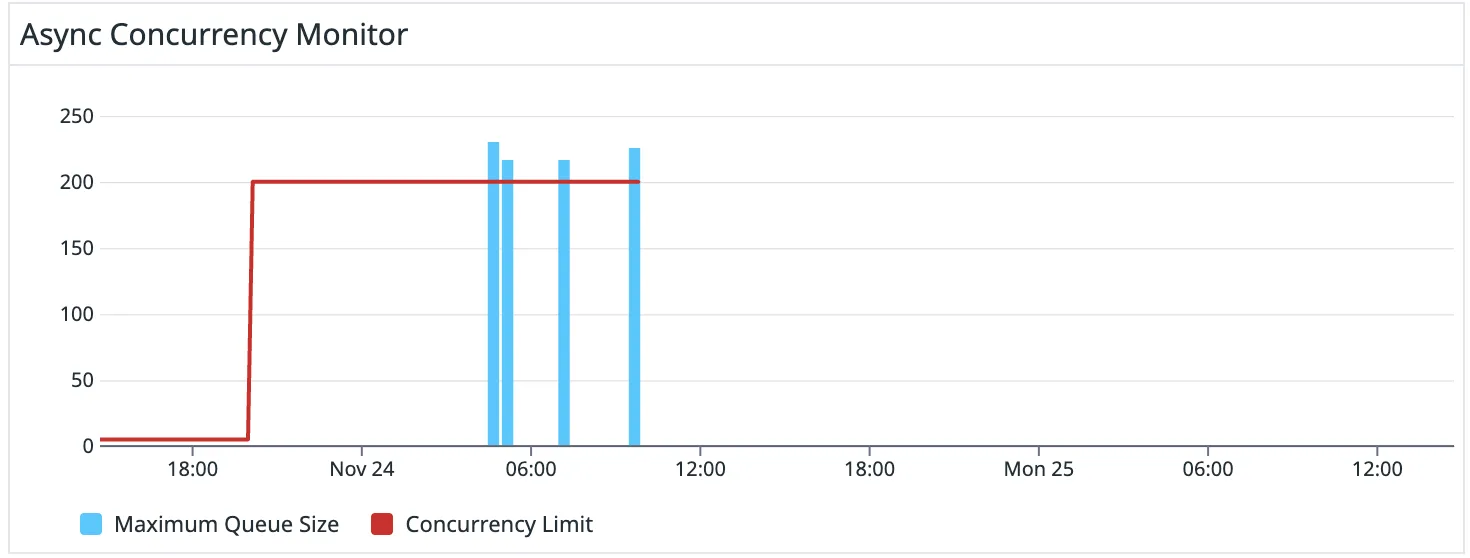
Click on the dashboard hyperlink to see an overview of the customer’s traffic pattern, you’ll want to look at the ‘Async Concurrency Monitor’ widget. In this example, we can see the customer has a ‘spiky’ traffic pattern and is likely not running production traffic so no further action is required.
-
If the traffic pattern is consistent, looks like production traffic and/or they’re a target account / have a Slack channel with us, reach out to the customer to discuss their needs and to determine a new suitable concurrency limit. If the account has an assigned CSM, you should make the CSM aware.
-
Open the Retool Account Management dashboard and make any necessary changes.
-
Reply to the alert in Slack with internal communications and/or a summary of the actions taken.
-
Mark it as done with an emoji, such as ✅
Streaming 90% Concurrency Limit Alert
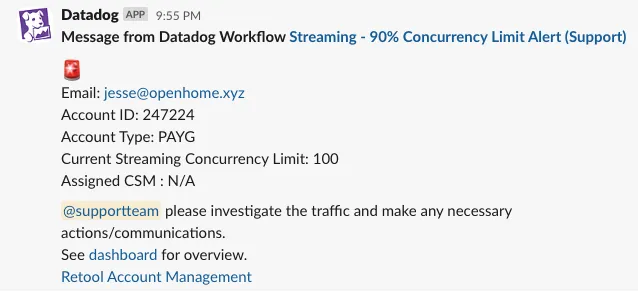
The streaming 90% concurrency limit alert is triggered when an account’s number of open sessions exceeds 90% of the account’s streaming concurrency limit. We use a 90% limit as this should provide enough time to react and action any necessary changes without affecting production traffic for the customer (once the limit is hit, they will no longer be able to open any new sessions).
-
Mark the message with an emoji such as 👀to signal you’re handling this alert.
-
View the customer’s email address to identify if they’re a target/important account or not, if they are you may want to reach out to the customer immediately to discuss the situation.
-
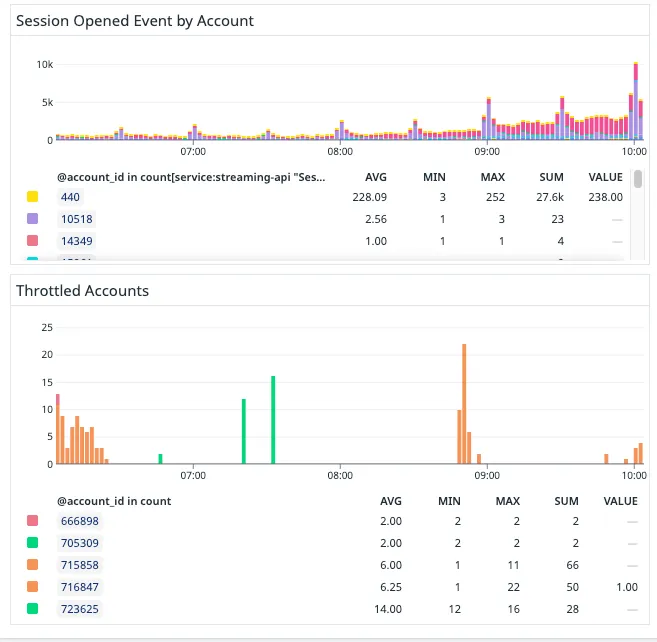
Go to Datadog and check the Streaming 2.0 dashboard. Scroll down to the “Session Opened Event By Account” and “Throttled Accounts”. Search for the account ID for the affected account to view the activity for their specific account.
-
If we notice something abnormal, we should contact the customer to find out more information on the spike and if a concurrency limit increase is necessary. Because streaming is technically unlimited concurrency, we should very rarely need to adjust their streaming rate limit. If the account has an assigned TAM, you should make the TAM aware.
-
If you need to adjust a customer’s streaming rate limit, open the Retool Account management dashboard and make any necessary changes.
-
Reply to the alert in Slack with internal communications and/or a summary of the actions taken.
-
Mark it as done with an emoji, such as ✅
Async 50% Client-side Errors Alert
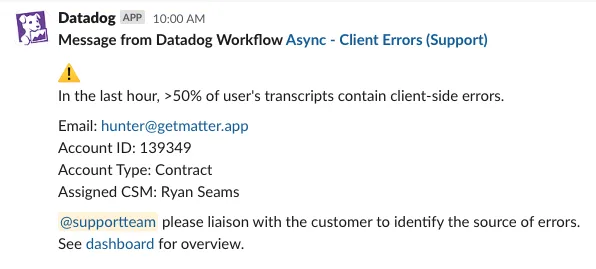
The 50% client errors alert is triggered when >50% of an account’s total transcripts in the last hour contained a client-side error. Currently, this alert is filtered for only contracted customers due to spam, however this is likely to be improved upon soon. We selected a 50% limit based on intuition that it is a high enough limit to signal a troubled customer, so this may be changed in the future.
- Check the “Previously notified” list to ensure the customer has not already been contacted regarding these errors. If so, mark the alert with an emoji such as ⏸️and skip.

-
Mark the message with an emoji such as 👀to signal you’re handling this alert.
-
View the customer’s email address to identify if they’re a target/important account or not, if they are you may want to reach out to the customer immediately to discuss the situation.
-
Click on the dashboard hyperlink to see an overview of the client errors, you’ll want to look at the ‘Client-side Errors’ widget.

-
In this example, we can see the customer is experiencing an AudioDownloadingError due to the file not existing/being empty. As the number of occurrences is only 6, we can estimate that it was a temporary issue and shouldn’t be a blocker for the customer however it is still worth contacting the customer to make them aware of the errors and to guide them on how to reduce it from occurring again in the future.
-
Contact the customer as required and/or loop the assigned CSM if applicable.
-
Reply to the alert in Slack with internal communications and/or a summary of the actions taken.
-
Mark it as done with an emoji, such as ✅