How to Loop in Sales_Surface Leads
Introduction
While the Sales team is in Pylon and handling some incoming chats, the majority of chats and tickets created will be handled by the Support team. Many of these conversations are potential sales opportunities so we should constantly be on the lookout for those. This playbook will cover the process of identifying potential sales leads, how to surface those leads, and how to loop Sales in on conversations.
Procedures
How to identify a sales lead
Sometimes a sales lead can be obvious. For example, if someone comes into chat saying they have X hours of transcription a month and are asking about volume discounts. But most times leads are less obvious and we need to be able to read between the lines to decide if there is an opportunity there. Here are some potential clues to look for that point to a sales lead:
-
pricing/discount-related questions
-
asking for test credits
-
mention of startup, YC, or non-profit
-
talk of comparing us to other providers
-
asking about scheduling a demo
-
security-type questions related to things like SOC2, HIPAA, PCI, BAA. etc
-
talk about looping in their developer or team
-
talk or questions about integrating the API into their product
-
asking about multiple API keys for an account
-
requests to increase concurrency
-
non-gmail/free email domains
-
emails with a .ai domain
As a general rule, we want to err on the side of surfacing more leads. So if you are ever on the fence about whether or not the person you are communicating with is a lead or not go ahead and surface it to be safe. We can always disqualify it if it isn’t a legit opportunity but if we don’t surface it we might never get another chance to connect with what could have been a solid opportunity.
How to surface a sales lead
Once you have determined that a Pylon conversation should be a surfaced as a lead, here are the steps you should follow:
If a Salesforce account is linked:
- Open the customers SFDC page by clicking the open page button

- Fill out the “Lead” field with either a currently created Contact, or create a new contact with the customer’s name, account and email address.

-
Fill out the “Use Case/Context for AE” field with context regarding the lead and why it was raised as a sales lead.
-
Click “Save” at the bottom of the page to submit the sales lead.
If a Salesforce account isn’t linked / You prefer working out of Slack:
-
Browse to the #chat-sales-lead channel in Slack
-
Click on the “Surface Sales Lead” workflow
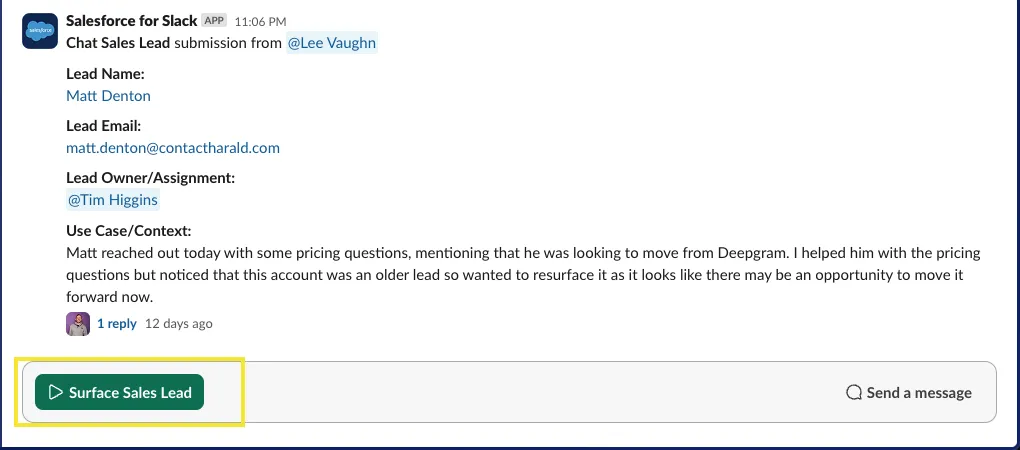
- Add the “Lead email” and “Use Case/Context” details and then click “Submit”.

How to loop sales in on a conversation
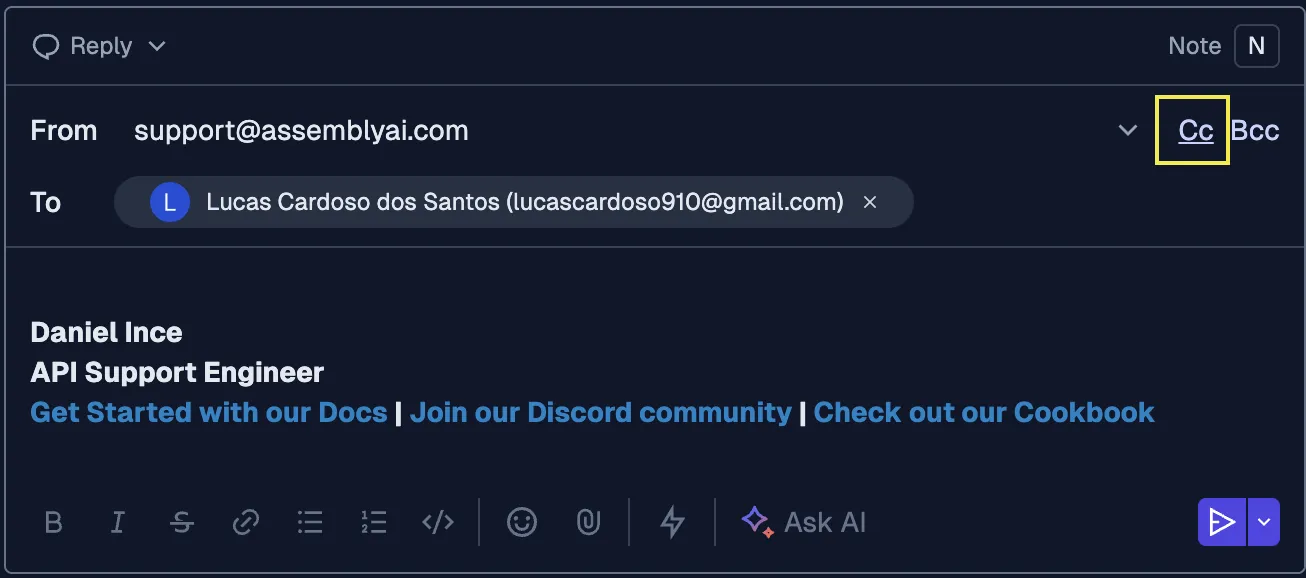
There may be times that you want to include the AE in your Pylon conversation with the customer, this is only applicable to email conversations. When that is the case the process for creating the lead will stay the same however you will need to conduct an extra step to CC them into the conversation.
- Check Salesforce to ensure that the company isn’t an existing account with an AE assigned.
- Enter the customer’s email in the search bar and hit enter. Check any matches that are returned to see if there is an AE assigned. If there is not an AE attached, proceed to the next step. Note: for the purpose of these sales leads we are only looking for AEs (Cooper, Tim, Michael, George).
- Submit the sales lead as outlined previously, and look for the returned “Lead Owner/Assignment” field.
- This will create the sales lead in Salesforce and randomly assign it to an AE. If you wait a few seconds you will be able to see which inbound SDR was assigned to the account by checking the #chat-sales-leads channel.

- Once you have determined the AE assigned to the lead, reply to the customer and loop them in on the conversation.
- Be sure to select “CC” in the message recipient field and add the AEs email address so that they get a copy of the message.