
How to Report a Bug
Overview
As a Support Engineer, you will commonly encounter Bugs, Product Feedback, and Feature Requests. In this document, you can find the definition of each of those items along with backlinks to any adjacent how-to guides such as submitting a feature request; however, this document will be focused on how to analyze and communicate the severity of a bug once you have confirmed the issue.
Definitions
-
Bug
- A bug is generally defined as unexpected behavior that affects the functionality of our API.
-
Product Feedback
- Also referred to as Voice of the Customer, product feedback encompasses positive or negative feedback about our product. See the Resources section for more information on how to surface product feedback.
-
Feature Requests
- Request for features or functionality that is not currently available in our Product. See the Resources section for more information on how to surface a feature request.
-
Outage
- An outage is any event where the entire API or any of its core services cease to work. For example, if a service like Auto Chapters stops working, that is an outage as that affects core API functionality. If the customer dashboard is not showing correct usage information that would not be an Outage as it does not affect core API functionality.
Actions defined by priority level
-
P0
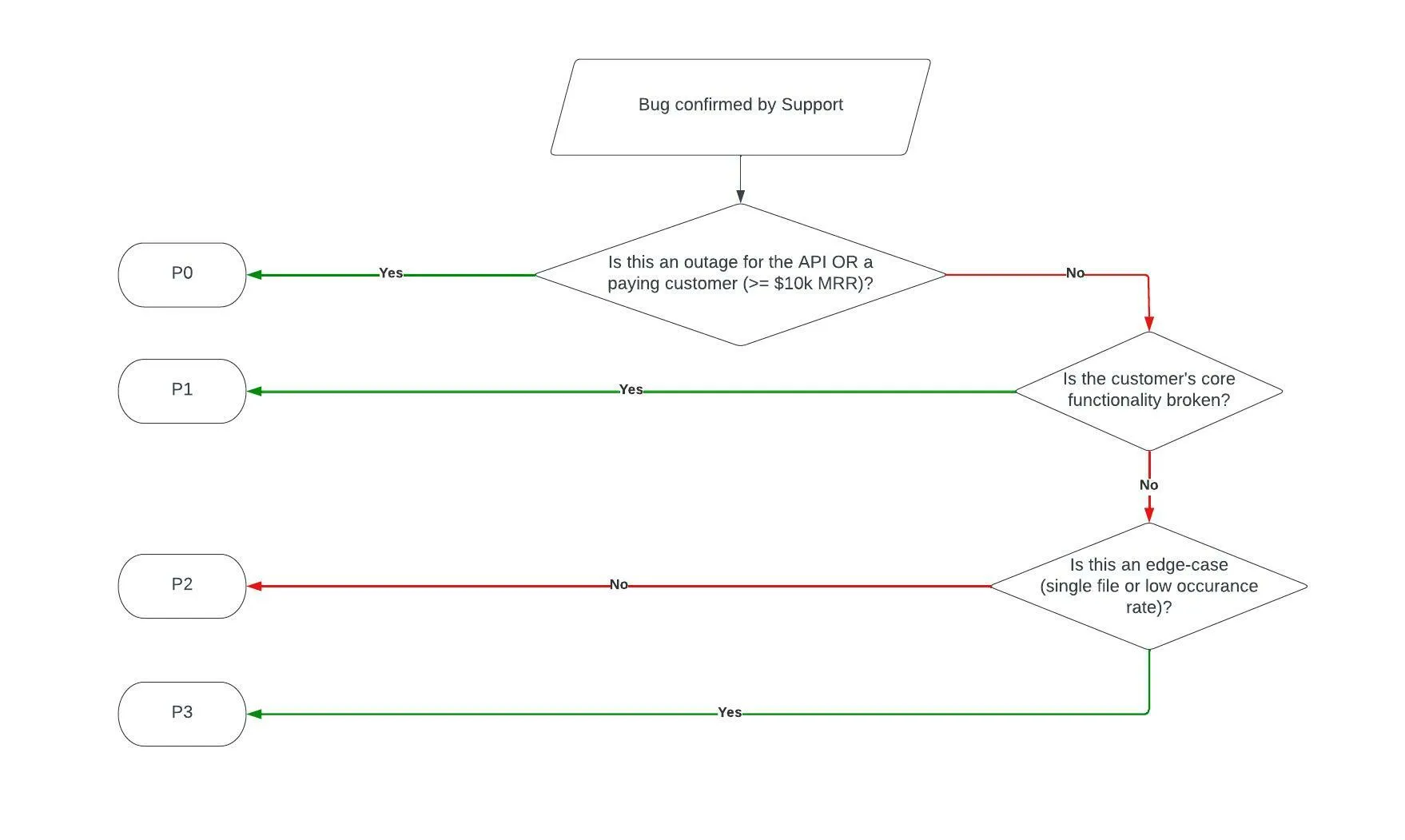
- Notifies the on-call Engineer at any hour. This is a drop-everything issue (e.g., company-wide outages or a paying customer being down).
-
P1
- Notifies on-call Engineer during business hours - this issue must be actioned on ASAP but does not justify waking up Engineers in the middle of the night.
-
P2
- Important but non-urgent issues that can be prioritized and worked into Engineering sprints.
-
P3
- Backlogged item - we may do these in the future, but we are not committing to it now.
How to arrive at the proper priority level
We can use the flow chart below to determine the severity of a bug and how to label it in our report.
Reporting Process
Below is a step-by-step guide outlining how to create a bug report from a Pylon ticket.
How to create a Jira ticket through Pylon
-
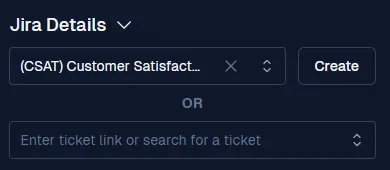
In the sidebar for the issue in Pylon, scroll down to the Jira Details section and click the Create button.
-
This will redirect you to a Create Issue form in Jira. Complete each field according to the instructions below:
-
Summary: By default, this will be generated based on information from the Pylon issue. Update the Summary as needed to properly summarize the issue for Engineering/Research.
-
Description: By default, this will be a copy of the original customer message. Delete that information and replace it with this template, filling in the sections in the template as needed.
-
.Parent: Leave blank.
-
Team: A team must be selected - tickets can be re-assigned to a different team after issue creation in case the original team selected is incorrect.
-
Sprint: Leave blank.
-
Labels: Leave blank.
-
Priority: Set priority based on the criteria outlined above.
-
Assignee: Leave blank.
-
Linked Issues: Don’t change.
-
Issue: Leave blank.
-
-
Click Create to submit the ticket.
What Happens after tickets are made?
If a ticket has a priority of P0 or P1, you should surface the ticket in #ask-engineering so that it can get immediate eyes on it. If the ticket is a P0 be sure to also tag @oncall-engineering in the post. All other tickets with a lower priority will be reviewed and prioritized in the weekly bug grooming meeting.
How to handle Pylon issues for a reported bug
In addition to the normal labels you would add for the issue based on the context of the conversation when you are reporting a bug, please also add the “Bug Reported” label under “Issue Type”. Once you have finished your conversation with the customer, please move the issue to the “On hold (bug reported)” column.
Resources
How to securely share files in Jira and other sources